Guides / Web basics
What is HTML?
A plain-language start to HTML, the language every web page is written in, using the code Kodebloc writes.
HTML in one sentence
HTML is the language that tells a web browser what is on a page. It says "this is a heading", "this is a paragraph", "this is a photo" and "this is a link". HTML stands for HyperText Markup Language. You do not need to remember that. Just remember that HTML is about meaning and structure, not looks. Colors, fonts and layout come from a second language called CSS.
Every website you visit is built on HTML, and that includes the ones Kodebloc makes. When you describe a website, the AI writes a real HTML page for you. So learning a little HTML helps you understand what you built, and helps you ask for better changes.
Tags and elements
HTML is made of tags. A tag is a word inside angle brackets, like <p>. Most tags come in pairs: an opening tag and a closing tag. The closing tag has a slash in it. Whatever sits between them is the content.
<p>We bake bread every morning.</p>The whole thing, from <p> to </p>, is called an element. Here it is a paragraph element. The browser does not show the tags. It only shows the words, laid out as a paragraph.
Elements can sit inside other elements, like boxes inside boxes. This is called nesting. Always close the inner element before the outer one.
<p>Open <strong>every day</strong> from 7 am.</p>Attributes: extra details
Some elements need more information. You add it with an attribute inside the opening tag. An attribute has a name, an equals sign and a value in quotes.
<a href="https://www.example.com">Visit our friends</a>Here, href is the attribute. It tells the link where to go. Two other attributes you will see a lot are class, which CSS uses to style an element, and alt, which describes a photo.
Headings and paragraphs
HTML has six heading levels, from <h1> to <h6>. The <h1> is the main title of the page, and a page usually has just one. Use <h2> for each big section and <h3> for smaller parts inside a section. Think of them like the title, chapters and sub-chapters of a book.
<h1>Rosa's Bakery</h1>
<h2>Our breads</h2>
<h3>Sourdough</h3>
<p>Slow-rising bread with a crisp crust.</p>
Pick a heading level for its place in the outline, not for its size. You can make any heading bigger or smaller with CSS. Screen readers and search engines use the levels to understand how your page is organized.
Links
Links are what make the web a web. The <a> element (for "anchor") makes a link, and its href says where it goes. It can point to another website, an email address, or a part of the same page.
<a href="https://www.example.com">Another website</a>
<a href="mailto:hello@example.com">Email us</a>
<a href="#menu">Jump to the menu</a>
The last one jumps to the element with id="menu" on the same page. Kodebloc uses links like this too. In a website with more than one page, a link to the Menu page is written as <a href="#menu">.
Images
The <img> element shows a picture. It has no closing tag, because it has no content inside it. It needs two attributes: src, the address of the picture, and alt, a short description of it.
<img src="croissants.jpg" alt="A tray of golden croissants" width="800" height="600">The alt text is read aloud to people who use screen readers, and it shows up if the picture fails to load. The width and height help the browser save the right amount of space, so the page does not jump while the picture loads.
Sections that give a page its shape
Some elements exist to group other elements and say what each part of the page is for. These are called semantic elements, because they carry meaning:
<header>: the top of the page, often with the logo and menu.<nav>: a group of main navigation links.<main>: the main content of the page. There is one per page.<section>: one themed part, like "Our menu" or "Reviews".<footer>: the bottom of the page, with contact details and small print.
Kodebloc is told to use these semantic tags in every website it builds. They help screen readers jump between parts of a page, and they make the code easier for you to read.
A tiny full page
Here is a complete, working web page. You could copy it into a file called index.html, open it in your browser, and see it.
<!DOCTYPE html>
<html lang="en">
<head>
  <meta charset="UTF-8">
  <meta name="viewport" content="width=device-width, initial-scale=1">
  <title>Rosa's Bakery - Fresh Bread in Town</title>
  <meta name="description" content="Rosa's Bakery bakes sourdough and buns every morning. Open daily from 7 am.">
</head>
<body>
  <header>
    <nav>
      <a href="#breads">Breads</a>
      <a href="#visit">Visit</a>
    </nav>
  </header>
  <main>
    <h1>Rosa's Bakery</h1>
    <p>Fresh bread, baked every morning.</p>
    <section id="breads">
      <h2>Our breads</h2>
      <img src="sourdough.jpg" alt="A round sourdough loaf on a wooden board">
    </section>
    <section id="visit">
      <h2>Visit us</h2>
      <p>Open every day from 7 am.</p>
    </section>
  </main>
  <footer>
    <p>Rosa's Bakery</p>
  </footer>
</body>
</html>
Here is what the parts do:
<!DOCTYPE html>tells the browser this is a modern HTML page.<html lang="en">wraps everything and says the page is in English.<head>holds information about the page that visitors do not see on it: the title in the browser tab, the description that search results can show, and the viewport line that makes the page fit phone screens.<body>holds everything visitors see.
A Kodebloc website has the same shape. Its head has a title, a meta description and the viewport line, and its body has a header, a main area with sections, and a footer. It is just longer, with more sections and lots of styling.
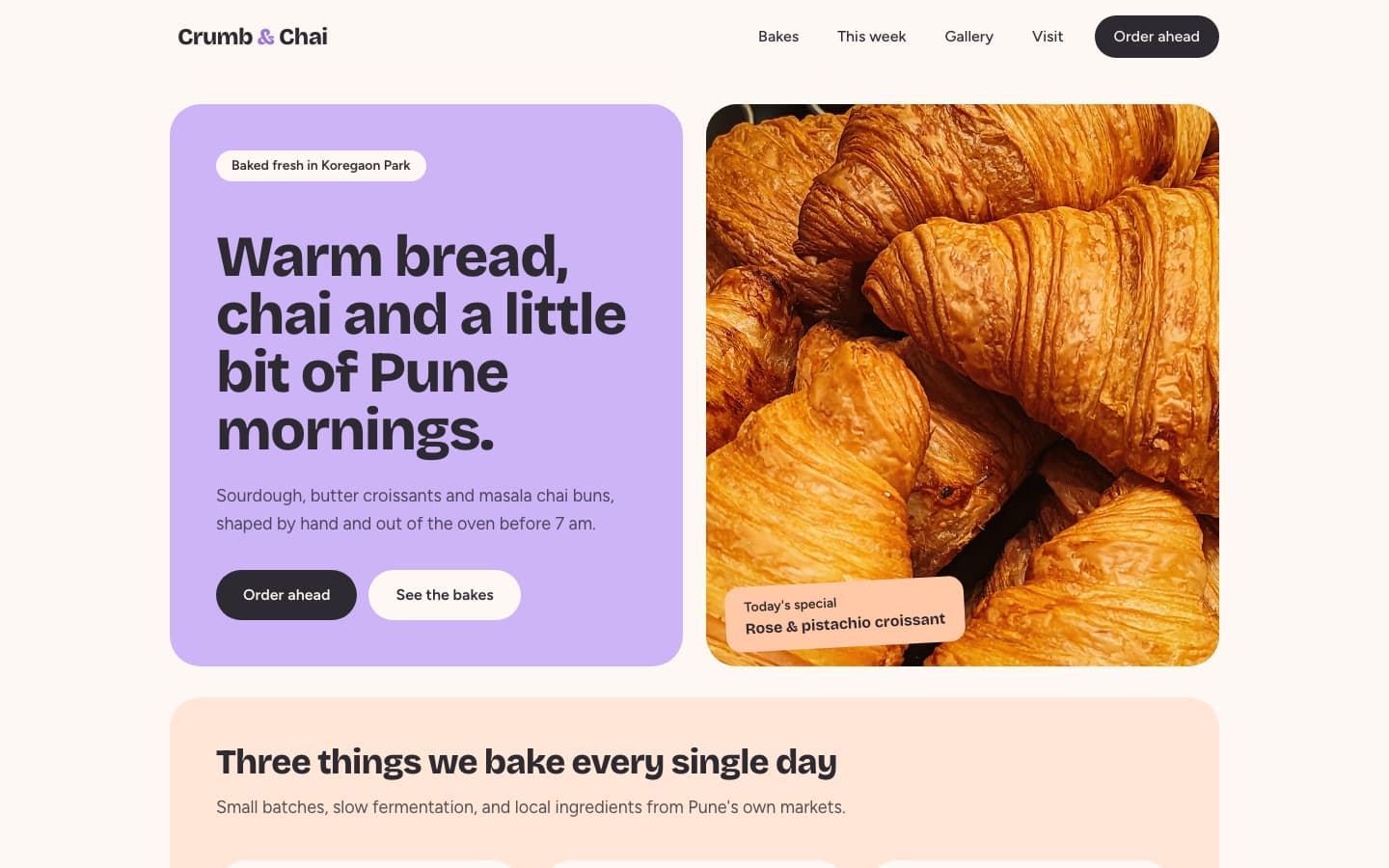
See the HTML of your own website
You can look at the real HTML Kodebloc wrote for you. In the editor, open the menu with your website's name at the top left and choose Download. You get a file called website.html. Open it in your browser to see the website, or open it in a text editor (like Notepad, TextEdit or VS Code) to read the code.
- Search the file for
<h1to find your main heading. - Look for
<sectionto see how the page is split up. - Find an
<imgand read itsalttext. - Find the
<title>near the top, inside the head.
Want to change something you found? You do not have to edit the file. Back in Kodebloc, you can ask for the change by chat or edit the words yourself.
Quick recap
- HTML describes what is on a page. CSS decides how it looks.
- Tags in angle brackets wrap content to make elements.
- Attributes like
href,srcandaltadd details. - Use headings in order, one
<h1>, then<h2>and<h3>. - Semantic elements like
<header>and<main>give the page its shape.
Still stuck?
Send us a message on the contact page and we'll reply by email.