Guides / Builder features
Share your website
The Share button, link previews with your own name and picture, and showing or hiding your website in the gallery.
Copy your link after publishing
When you publish, the box says Your website is online and shows your link with a Copy link button next to it. Click it, then paste the link into a message, an email, a school assignment or your social media bio. Anyone can open it on a phone or a computer. They don't need a Kodebloc account.
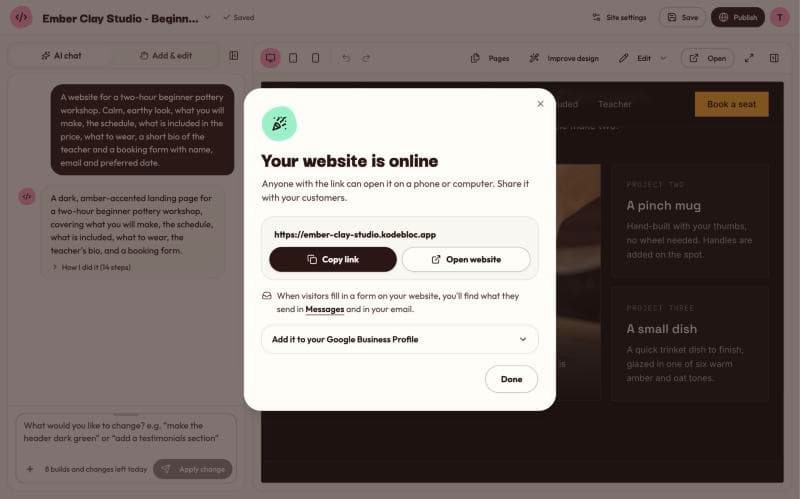
You can find the link again later. Open My projects and look under Live websites, or click View live on the website's card. For how addresses are made, see Your website's address.
The bar at the top of a published website
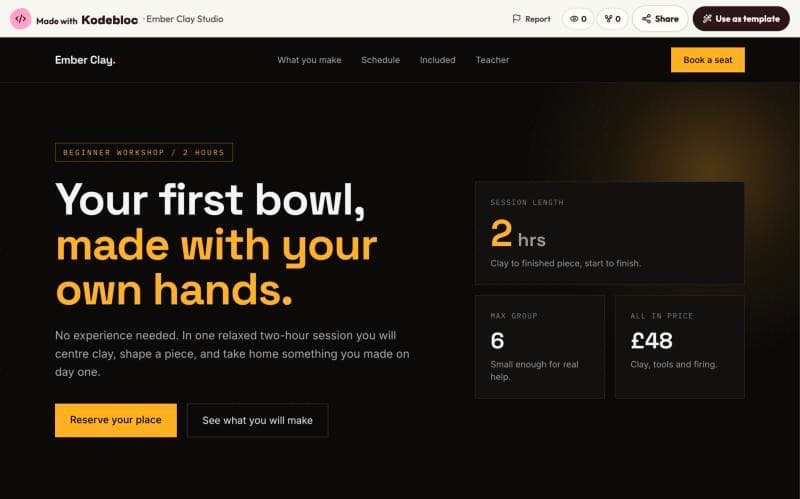
Every published website opens with a thin bar across the top. It says Made with Kodebloc and shows the website's name. On the right it has:
- Report, for visitors who think the website breaks the rules. See Safety on Kodebloc.
- Two small counts on wider screens: views, and how many times the website was used as a template.
- Share, so visitors can pass your website on.
- Use as template, which lets a visitor make their own copy. More on that below.
The Share button
The Share button helps your visitors share your website for you.
- On a phone, and in browsers that have one, it opens the device's own share menu. The visitor picks an app, like a chat app or email.
- Everywhere else, it copies the link and shows “Link copied. Paste it anywhere to share this website.”
If your website has more than one page, Share sends a link to the page the visitor is looking at. A friend who opens it lands on that same page.
The share count
Each share that goes through adds one to your website's share count. The count shows next to the word Share from the first share on, on wider screens. On a phone the button shows only its icon. You can also see the count in My projects, under Live websites, next to the views.
A visitor counts once a day for each website. Pressing Share ten times in a row doesn't add ten. Closing the share menu without picking an app doesn't count either.
Link previews with your own name and photo
When someone pastes your link into a chat app or a social network, many apps show a small card under it. Kodebloc fills that card in for you:
- The name is your website's name, with “built with Kodebloc” after it, so people can see where it is hosted.
- The line under it is your website's description, or the first real paragraph on the page.
- The picture is your website's main photo, usually the big one near the top. A website with no photos gets the Kodebloc picture.
A link to one page of a website with several pages gets its own card, with that page's name, like “Menu - Rosa's Bakery”, and its own first lines and photo.
Choose the card yourself
- In the editor, click your website's name at the top left and choose Site settings.
- Open the Sharing tab. It shows a preview of the link card.
- Under Photo on the card, pick one of your website's photos, or leave it on Automatic. You can also paste a link to a picture in Or an image link. A picture 1200 by 630 pixels looks best.
- To change the name and the line under it, use the Search tab: Title in search results and Description.
- Click Save settings, then Update live site.
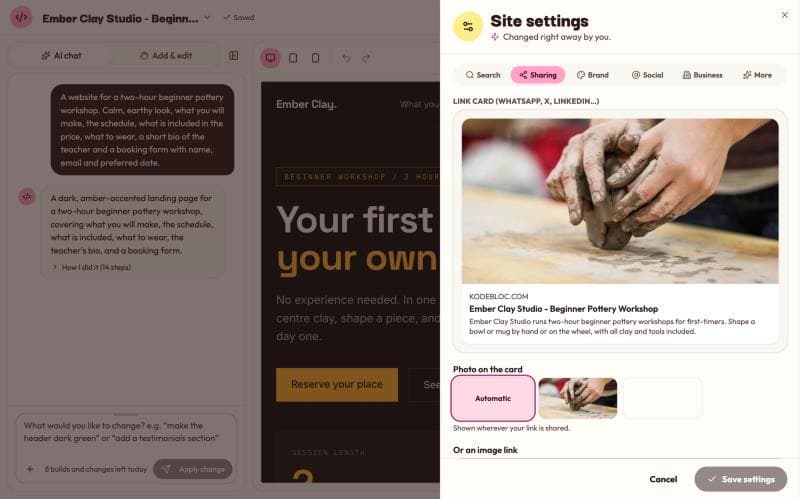
The settings are part of your website, so the live link only shows the new card after you update it. All the settings are covered in Site settings.
The community gallery
The community gallery is a public page of websites people built with Kodebloc. Anyone can browse it, search by name, filter by style, and sort by Newest, Most viewed or Most copied. Each card shows the website's name, its description, when it was published and the name on the account that published it.
Show or hide your website in the gallery
When you publish, the box has a Show in the community gallery checkbox. It is ticked to start with.
- Ticked: your website is listed in the gallery. New websites usually show up within about 10 minutes.
- Unticked: your website still works at its link, but it is left out of the gallery. Only people you give the link to can find it that way. In My projects it says “Only people with the link”.
To change it later without publishing again:
- Open the website in the editor and click Publish or Update.
- Tick or untick Show in the community gallery.
- Click Save setting only. A website you hide usually leaves the gallery within about 10 minutes.
Use as template: copies of websites
Use as template appears on gallery cards and in the top bar of published websites. It opens the builder with the visitor's own copy of the website. They can change anything in their copy with the AI chat or by hand.
- The original website doesn't change. Copies never touch your page.
- A copy doesn't take the original owner's Site settings, like business details and social accounts. The new owner adds their own.
- Each copy adds one to the “used as a template” count on the original website.
This works both ways. Found a website you like in the gallery? Click Use as template and make it yours. It is often quicker than starting from nothing.
Tips for sharing
- Check on a phone first. Most people open shared links on a phone. Open your link on one before you send it around.
- Give it a clear name. The name shows on the link card. “Rosa's Bakery” tells people more than “My website”.
- Keep one link. Use Update live site for changes, so the link you already shared keeps working. See Update or take down a live website.
- Use your real name only if you want to. The gallery shows the name on your account. If you would rather not show it, untick the gallery box.
Still stuck?
Send us a message on the contact page and we'll reply by email.