Guides / Builder features
Update or take down a live website
Put your latest changes online at the same address, see when the live website is behind, and take a website offline.
Your editor and your live website are two copies
When you publish, Kodebloc puts a copy of your website online at its own address. After that, the website in the editor and the live website are separate. You can keep changing the one in the editor, and visitors keep seeing the live one, until you decide to update it.
This is on purpose. You can try out a new color or a new section without visitors seeing a half-finished page. When you are happy, you send all your changes online in one go.
How you know the live website is behind
Kodebloc tells you in three places when your changes aren't online yet:
- A notice in the editor. A yellow bar under the top bar says “Your live website doesn't have these changes yet. Update it when you're happy with them.” It has an Update live site button. The X button hides the notice until your next change.
- The Publish button. It changes to Update and gets a small dot.
- My projects. The website's card shows an Update pending badge and a short note with an Open to update link.
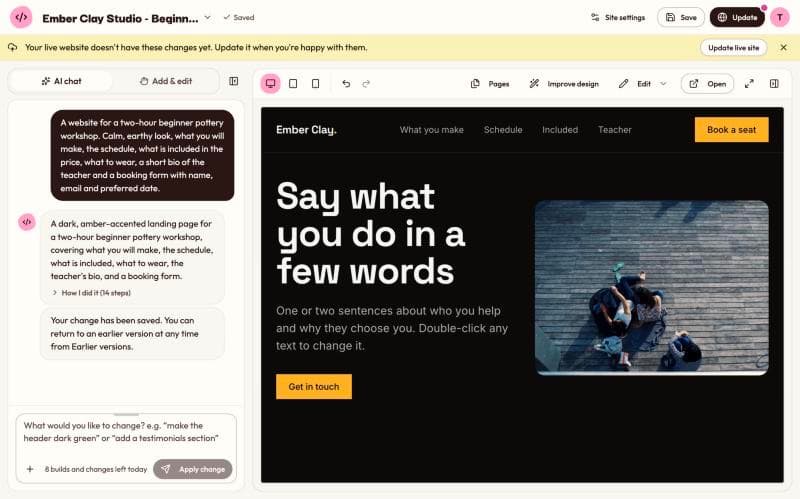
Update your live website
- Make your changes in the editor. Check them in the preview, on every page if your website has more than one.
- Click Update live site in the yellow notice, or click Update at the top right. A box opens called “Update your live website”.
- Check the Website name and the Show in the community gallery box. You can leave them as they are.
- Click Update live site. When it is done, you see “Your website is updated. Anyone with the link sees the new version.”
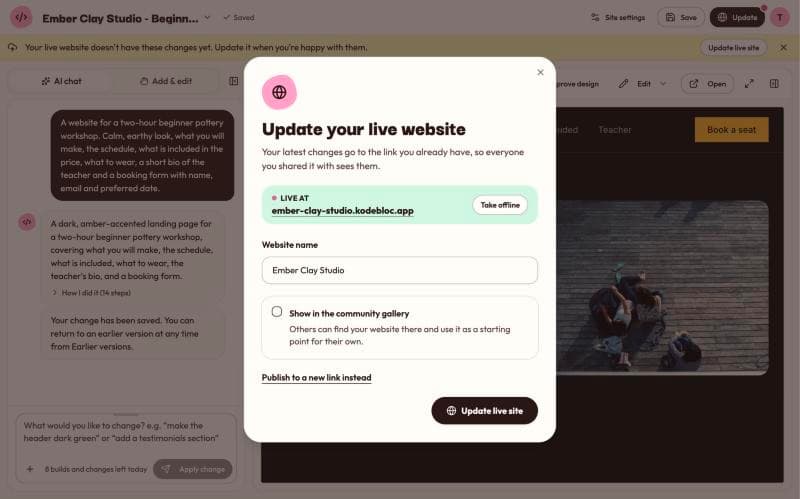
Your website stays at the same address. Everyone you already sent the link to sees the new version the next time they open it. Its views, its share count and the form messages visitors sent you are kept.
You can update from any computer. Open My projects, click Open on the website, make your changes and update as above.
Put an earlier version online
Did an update go wrong? Open Earlier versions from the website menu, go back to the version you want, then click Update live site. The steps are in Earlier versions and undo.
Every update is checked first
Before any page goes online, Kodebloc checks it for things that could trick visitors, like a fake sign-in form. This happens on every update, not just the first publish. If something is found, the update stops and a message tells you what to change. Your live website stays as it was. A real website can trip a check by accident, so if you think it is a mistake, tell us on the contact page. Read more on the Safety page.
Publish to a new link instead
Sometimes you want to keep the old version online and put the new one somewhere else. For example, a class project you already handed in, and a new version for next year.
- Open the update box.
- Click Publish to a new link instead. The box shows a Link field where you can choose the new address.
- Click Publish to new link.
Your old link stays online with the version it had. Changed your mind before publishing? Click Keep the same link. Both links show under Live websites in My projects, and each one counts toward your limit of websites online.
Take a website offline
Taking a website offline stops its link from working for everyone. Your project stays in My projects, so you can publish it again any time.
From the editor
- Click Update or Publish at the top right.
- Next to Live at and your address, click Take offline.
- Read the message and click Take offline again to confirm.
From My projects
- Open My projects and scroll to Live websites. It lists everything you have online, older links included, with views, shares and the date each was published.
- Click Take offline next to the website, then confirm.
What happens next:
- The link stops working at once. Visitors see a “not found” page.
- If it was in the community gallery, it leaves the gallery, usually within about 10 minutes.
- The address stays reserved for you. Nobody else can publish a different website at a link you shared around. You can publish the project at the same address again later.
Delete a website
Deleting removes the project from My projects for good, with its earlier versions.
- In My projects, click the trash button on the website's card. Its label is Delete website.
- If the website is online, the box shows Also take its website offline. It is ticked to start with. Leave it ticked to stop the link working too. Untick it to keep the live website online.
- Click Delete.
If you untick the box, the live website stays online with no project behind it. You can still take it offline later under Live websites, but there is no project left to update it from.
To remove everything at once, you can delete your whole account. That takes all your websites offline. See Delete your account.
Common mistakes
- Changing the website and forgetting to update. Visitors only see changes after you click Update live site. Look for the yellow notice or the dot on the Update button.
- Publishing to a new link by accident. People who have your old link keep seeing the old version. Use Update live site unless you really want two addresses.
- Deleting when you meant to hide. Take offline keeps your work. Delete removes it.
Still stuck?
Send us a message on the contact page and we'll reply by email.