Guides / Builder features
Websites with more than one page
Build a website with several pages, then add, rename, move and delete them. Each page gets its own link.
One page or several?
Many websites fit on one long page. You scroll down and see everything: who you are, what you offer and how to get in touch. That works well for an event, a small portfolio or a simple landing page.
Other websites have more to say. A cafe might want a home page, a menu page and a contact page. A tutor might want separate pages for subjects, prices and reviews. Splitting things up makes each page shorter and easier to read, and visitors can jump straight to the part they need.
In Kodebloc, a website can have up to 5 pages. The first page is always the home page. All the pages share one header and one footer, so your logo, menu and contact details look the same everywhere.
Build a website with several pages
You choose this before the first build, in the box where you type your request.
- Open the builder and make sure the AI chat tab is selected.
- Just above the request box, find the two buttons One page and Multiple pages. Choose Multiple pages.
- Type what your website is for. Name the pages you want if you already know them.
- Send it. The AI writes 3 to 5 pages in one go, with a menu link to each page.
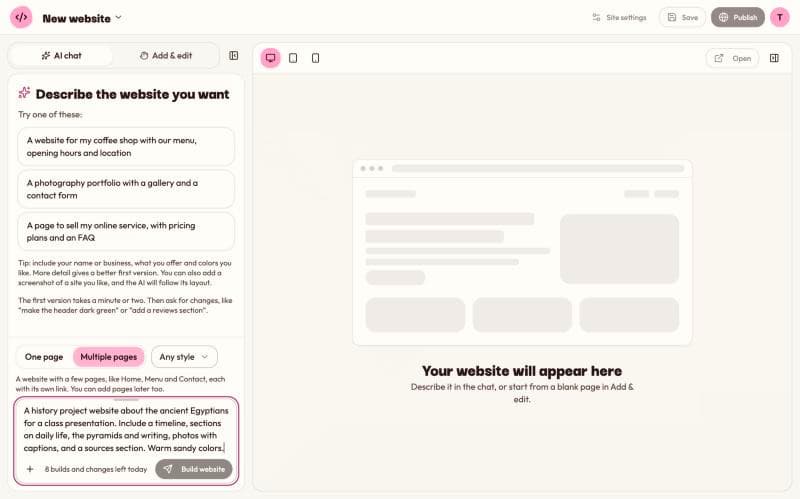
“A website for Lily's Dog Walking in Austin with three pages: Home, Prices and Contact. Friendly colors, photos of happy dogs, and a booking form on the Contact page.”
A first build with several pages takes longer than a one-page build, because there is more to write. Wait for it to finish before you start changing things.
Sometimes the AI still makes one page. If that happens, the chat tells you, and you can add pages afterwards with the Pages button, as shown below.
Look at each page in the preview
Once your website has two or more pages, a Page menu appears above the preview. It shows which page is on screen. Pick another page from the menu to see it. You can also click the menu links inside the preview, just like a visitor would, and the Page menu follows along.
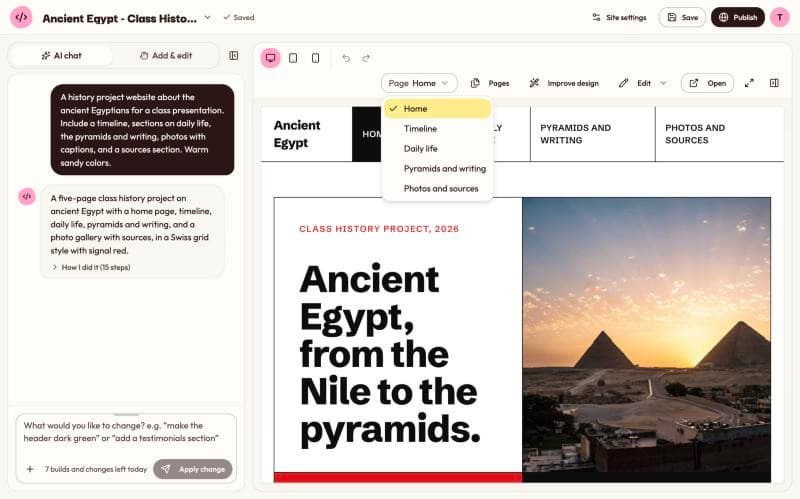
This matters when you ask for changes in the chat. A change you ask for is made to the page on show. So if the Prices page is open and you type "add a line about group discounts", the line goes on the Prices page. After the change, the preview stays on that page.
Add, rename, move and delete pages
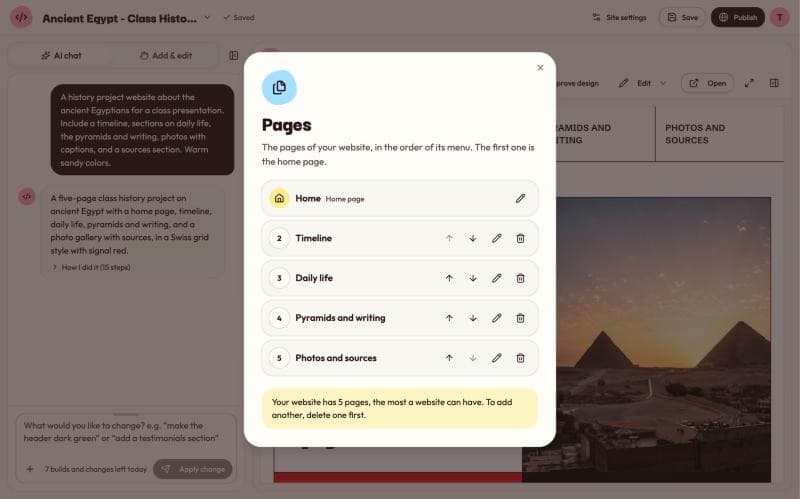
Click the Pages button above the preview. It opens a list of your pages in the order of your menu, with the home page at the top.
Add a page
- Open Pages.
- Under Add a page, type the new page's name, like Gallery or Prices. Names can be up to 30 characters.
- Click Add. The list closes and the AI writes the page to match the rest of your website, with a link to it in the menu.
Adding a page uses the AI, so it counts as one change, the same as any request in the chat. You can add a page to a website that started as one page, too. What you had becomes the home page, and the new page joins it.
Rename a page
Click the pencil next to a page, type the new name and click Save. The menu and any links that showed the old name now show the new one. Two pages can't have the same name.
Move a page
Use the up and down arrows next to a page to change its place in the menu. The home page always stays first, so it has no arrows.
Delete a page
Click the bin next to a page. Kodebloc asks you to confirm: Delete removes the page and the links to it, and Keep cancels. The home page can't be deleted.
Renaming, moving and deleting happen at once in your browser. They don't use the AI and they don't count as changes. When you close the Pages list, all the page edits you made are saved together as one step in Earlier versions.
When you have 5 pages
5 is the most a website can have. When you reach it, the Pages list tells you, and the Add box goes away. To add a different page, delete one first.
Each page has its own link
When you publish a website with several pages, every page gets its own address. The home page uses your website's main link. The other pages add their name to the end, like this:
- Home page:
lilys-dog-walking.kodebloc.app - Prices page:
lilys-dog-walking.kodebloc.app/prices - Contact page:
lilys-dog-walking.kodebloc.app/contact
As visitors move between pages, the address in their browser changes to match. So if someone copies the address while looking at your Prices page, the link they share opens the Prices page. Back and Forward in the browser work as people expect.
When you rename a page, its link usually changes to follow the new name. A link someone shared with the old name doesn't break: it opens your home page instead. The same happens with a link to a page you deleted. Learn more in Your website's address.
Tips and common mistakes
- Keep page names short. One or two words, like "Menu" or "About us", fit nicely in a menu, especially on a phone.
- Don't make pages you can't fill. A page with one sentence on it feels empty. If you only have a little to say, a section on the home page may be better.
- Check the page on show before you ask. Most surprises come from a change landing on a different page than you meant. Look at the Page menu first.
- Look at every page on a phone. Click the Mobile view button above the preview and click through each page in the menu.
Still stuck?
Send us a message on the contact page and we'll reply by email.