Guides / Builder features
Photos in your website
Where your website's photos come from, how to change one, and how the photographers are credited.
Where the photos come from
When Kodebloc builds your website, the AI decides where pictures should go and what each one should show, like “fresh bread on a wooden table” or “a yoga class at sunrise”. Kodebloc then looks for a real photo that matches on Unsplash, a big library of free photos taken by photographers around the world. Each photo is cropped to fit the space the AI planned for it, so your layout stays neat.
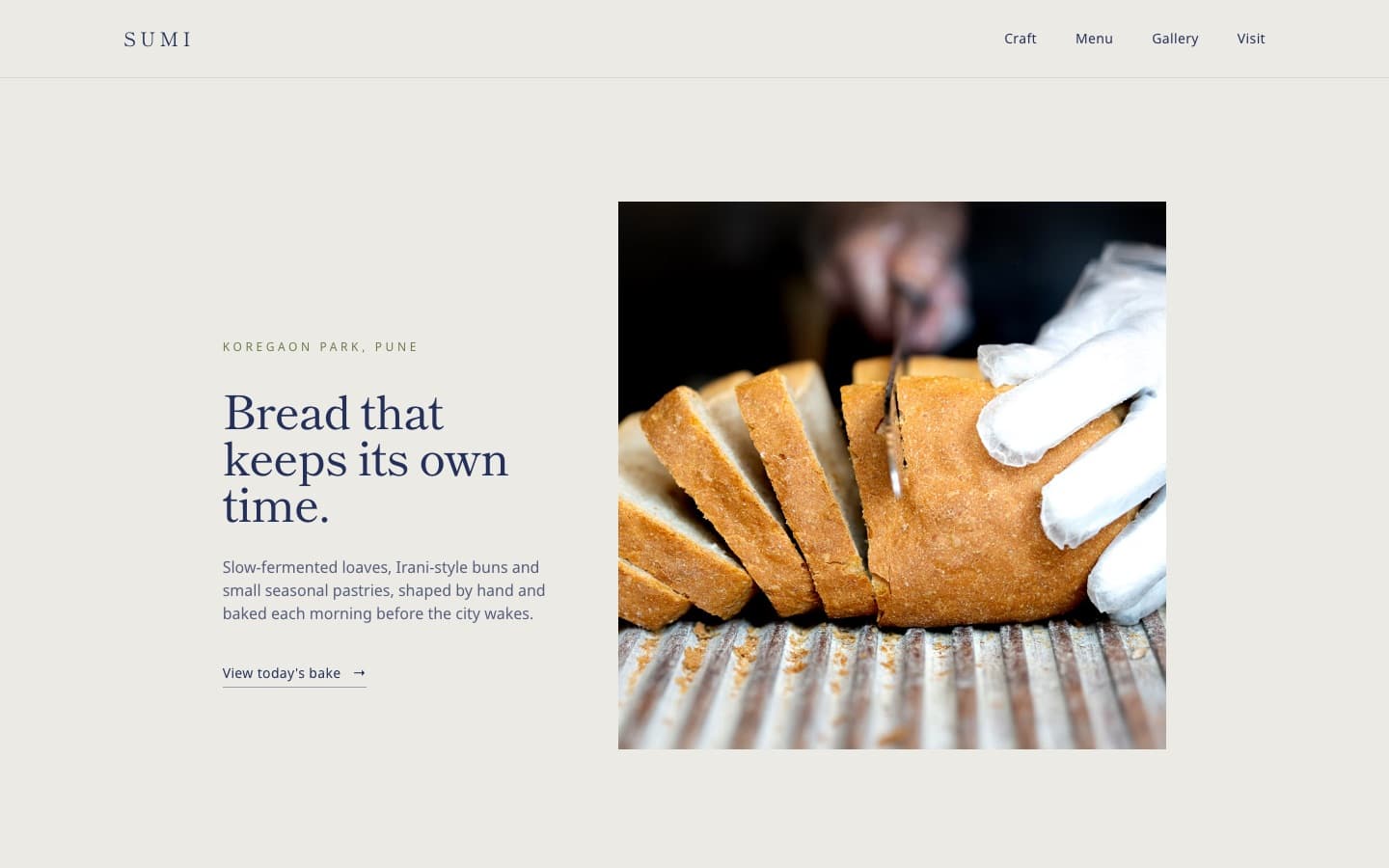
A few things help the photos fit a real business:
- Kodebloc tries to avoid photos of other companies' signs, logos, shop fronts or magazine covers, so your website doesn't look like it belongs to someone else.
- Reviews and testimonials get a small badge with the person's initials instead of a stranger's face. If you want photos there, ask for them in your request.
- When you change your website with the AI chat, Kodebloc only looks for photos for the parts that are new. Photos you already have stay put.
When a photo doesn't match
Sometimes Kodebloc can't find a good match, or Unsplash is busy. Then a stand-in photo fills the space instead. It might not show what you wanted, but your website is still built. A missing photo never stops a build. You can swap any photo you don't like in a few clicks, as shown below.
Change a photo
You can replace any photo on your page with a different one from Unsplash. There are two ways to start.
From the Add & edit tab
- Open the Add & edit tab and click the photo in the preview to select it.
- A small toolbar appears next to it. Click Photo (its label says “Change the photo”).
From the chat
- Click + next to the message box and choose Pick a part of your page. Or open the Edit menu above the preview and choose Pick a part.
- Click the photo you want to change.
- In the bar that shows what you are changing, click Change photo.
Pick the new photo
Both ways open a box called Change photo. It says: “Search for a photo and click the one you want. It replaces the picture you picked.”
- Type what the photo should show in the search box, like
coffee beans, and click Search. - Look through the results. Each one shows “by” and the photographer's name. Click More photos to see more.
- Click the photo you like, then click Use this photo.
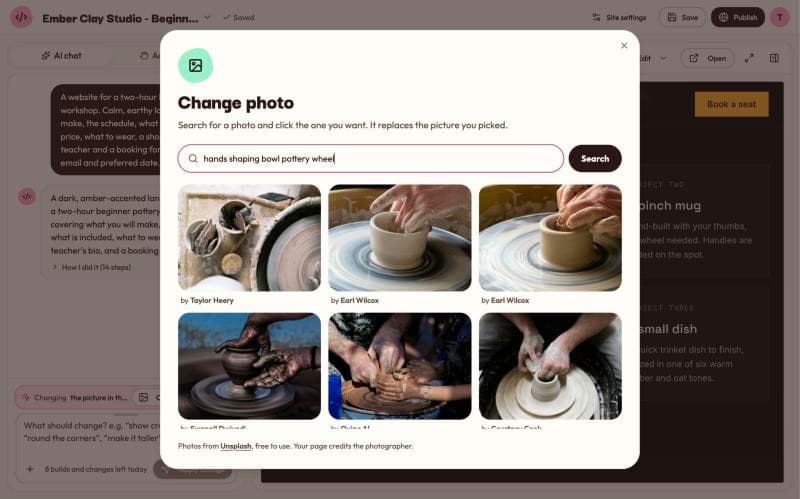
The new photo takes the old one's place, cropped to the same size, so the rest of the page doesn't move. Changing a photo doesn't use any of your AI requests. It is saved as a new version, and you can take it back with Undo. See Earlier versions and undo.
If you see “No photos found”, try fewer or simpler words. “Dog” finds more than “small brown dog wearing a red scarf in the park”.
Or ask the AI
You can also describe the change in the chat, like “Use a photo of a latte with heart foam art in the top section.” The AI updates the page and Kodebloc finds a matching photo. This way does use an AI request. Read more in Edit with chat.
Can I use my own photos?
Not yet. Uploading your own pictures is on the way. In Site settings, under the More tab, it is listed as coming soon. For now, you can paste a link to an image that is already online for your logo, your tab icon and the picture on your share card. See Site settings.
Photographer credits
Unsplash photos are free to use, and it is kind and fair to thank the people who took them. Kodebloc does this for you. At the bottom of your website there is a short line like:
Photos by Ana Lopez, Ken Mori on Unsplash
Each name links to that photographer's page on Unsplash. If your website has photos by many photographers, the line names some of them and adds “and others”.
- The credit line keeps itself up to date. Change or remove a photo and the line changes to match, so it only names photographers whose photos are still on the page.
- Please leave the credit line in place. It is how the photographers get thanked for their work.
Photos that load fast
Big photos can make a website slow, especially on a phone. Kodebloc helps in a simple way: the first couple of photos load right away, because visitors see them first. Photos further down the page wait until the visitor scrolls near them. This is called lazy loading. The page opens faster, and visitors on slow connections don't download photos they never scroll to.
You don't need to turn this on. It happens on its own on every website.
Describe your photos for everyone
Some visitors use screen readers, which read the page out loud. A screen reader can't see a photo, so it reads a short description instead, called alt text. The photos on your page come with this description built in, so everyone can tell what each picture shows. Learn more in Website accessibility.
Tips for better photos
- Say what you sell. “A bakery that sells sourdough and cinnamon buns” gets better photos than “a bakery”.
- Search with plain words. One or two clear words work best in the Change photo box.
- Check every page. Look at each photo in the preview, on a phone size too, before you publish.
- Update after changes. New photos only reach your live website after you click Update live site. See Update or take down a live website.
Still stuck?
Send us a message on the contact page and we'll reply by email.