Guides / Build a website
Turn a screenshot into a website
Add a screenshot or a design picture and Kodebloc builds a website from it. What works well, and its limits.
What it does
Sometimes it is easier to show than to tell. If you have a picture of a web page whose layout you like, you can add it to your request. The AI looks at the picture and builds your website to follow it: the order of the parts, the spacing, the font sizes, the rounded corners and the colors.
The picture can be a screenshot of a website, or a design you made in a design tool and saved as an image. Your words still decide what the website is about. The picture decides how it looks.
How to add a screenshot
- Open the editor and start a new website.
- Click + next to the message box and choose Add a screenshot.
- Choose a PNG, JPEG or WebP file of up to 5 MB. A small preview appears above the message box with the words “Your website will follow this screenshot.”
- Type your request: what the website is for and what it should say. You can also send the picture on its own, with no words.
- Press Build website. A first build with a screenshot can take a little longer than one without.
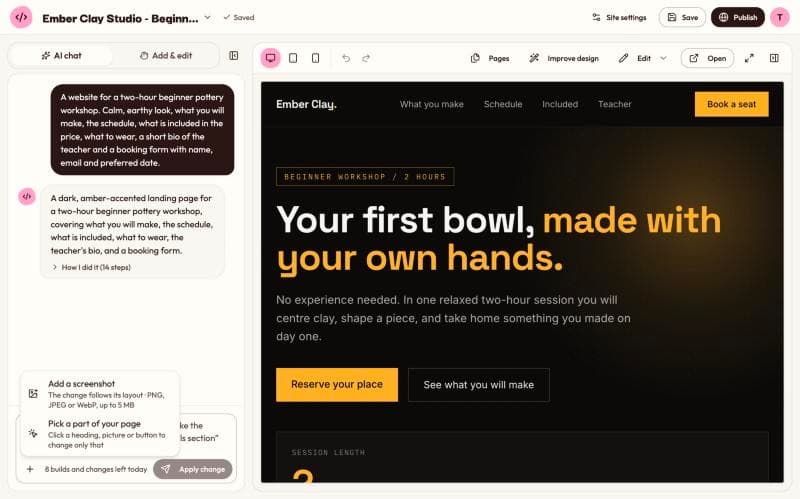
Picked the wrong file? Click the X next to the preview (“Remove screenshot”), or choose Change screenshot from the + menu to pick another. You can add one picture per message.
Write a request to go with it
If you send only a picture, the AI has to guess what your website is about. It uses the text in the screenshot as a guide, but writes its own. Add a few sentences about your own website and you get your content in the layout you like.
“Build it like my screenshot”
“Follow the layout in my screenshot for a website for Green Thumb Garden Care, a lawn and garden service in Leeds. Sections for our services with prices, before and after photos, reviews and a form to ask for a free quote. Use green and white.”
What the AI does with each part of the picture
- Layout and style: it follows the picture's layout, spacing, alignment, font sizes and weights, corner rounding and colors.
- Words: it writes text for your request. Where your request says nothing, it uses the text in the picture as a guide.
- Photos: each photo in the picture becomes a real photo that fits your website, at a similar size and shape. It does not reuse the photos from the screenshot. See photos in your website.
- Icons and simple shapes: these are drawn fresh.
- Names, logos and trademarks: the AI is told never to copy another company's name, logo or trademarks from a screenshot.
- Part of a page: if the picture shows only the top of a page, the AI completes the rest, with a footer in the same style.
Use a screenshot for a change
You can add a picture after the first build too. Maybe you like how another website shows its prices and want yours to look like that. Pick the part you want to change with Pick a part of your page in the + menu, add the screenshot from the same menu, and say what to change:
“Make my prices section look like this screenshot, with three cards side by side”
The preview above the message box then says “The change will follow this screenshot.” The AI changes only what you asked for and keeps your own words unless you ask for new ones. More on changes in change your website by chat.
Tips for good results
- Use a clear, sharp picture. A screenshot taken on a computer works better than a phone photo of a screen.
- Show one screen, not a whole long page. Kodebloc shrinks big pictures so the longest side is 1,568 pixels before sending them. A very tall full-page screenshot gets squeezed, and small details get hard to read. A screenshot of what fits on one screen keeps the details clear.
- Crop out what you don't want. Browser tabs, pop-ups and cookie banners are part of the picture too. Crop them away first.
- Say what is different. “Same layout, but in dark blue and with four services instead of three” gets you closer in one go.
Limits
- It is not a pixel-perfect copy. The AI follows the look and layout. Fonts, photos and small details will differ.
- A picture can't show movement. Animations, menus that open and other moving parts don't show in a still picture, so the AI can't see them.
- Only some file types. PNG, JPEG and WebP work. For any other file, Kodebloc asks you to pick a PNG, JPEG or WebP picture instead.
- Not with your own AI key. If you build with your own OpenRouter key (Settings, then AI key), Add a screenshot is hidden.
- It counts like any other build. A build or change with a screenshot counts as one toward your daily limit. A picture that is refused before the build costs nothing.
- Sometimes it is busy. If you see “We couldn't build from your screenshot right now”, wait a minute and try again, or send your message without the picture.
Kodebloc doesn't keep your screenshot. It is sent with your request, used for that build or change, and not saved.
Build from a screenshotStill stuck?
Send us a message on the contact page and we'll reply by email.