Guides / Builder features
Site settings: search, sharing and brand
Set how your website shows up on Google and in shared links, and add your brand and social accounts.
What Site settings are for
Some things about your website aren't really part of the page people scroll through. Think of the title Google shows in search results, the picture that pops up when you send your link in a chat, or the little icon in the browser tab. Site settings is where you set these yourself.
Changes here are made right away, by you. They don't use an AI request. Your settings also stay in place when you later change your website with the AI.
Open Site settings
- Build a website first. Site settings is greyed out until there is one.
- On a computer, click Site settings in the bar at the top of the builder. On a smaller screen, click your website's name at the top left and choose Site settings from the menu.
- A panel opens on the right with six tabs: Search, Sharing, Brand, Social, Business and More.
- Make your changes on any of the tabs, then click Save settings at the bottom. Cancel closes the panel without saving.
Search: how you look on Google
The top of this tab shows a Google preview that changes as you type.
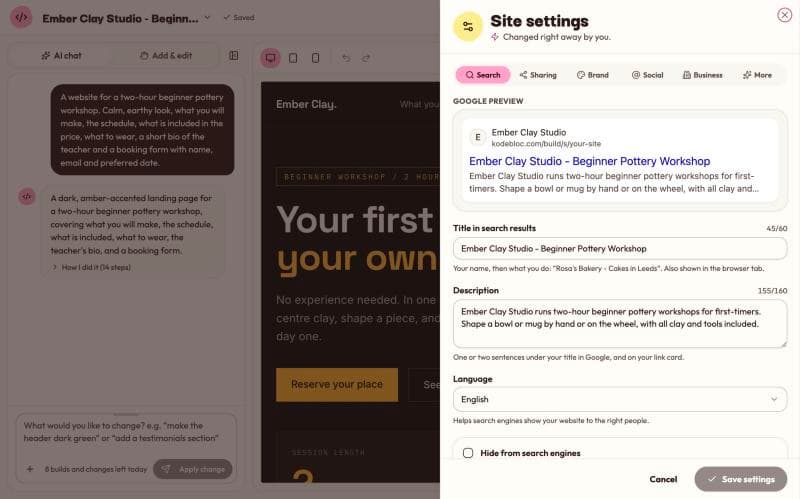
- Title in search results is the blue line in Google. It also shows in the browser tab. A good pattern is your name, then what you do, like "Rosa's Bakery - Cakes in Leeds". The counter shows 60 characters, which is about how much search engines show in full. The title can't be left empty.
- Description is the one or two sentences under the title in Google. It also appears on your link card when you share your website. Aim for 160 characters or fewer. Say what you offer and where, in plain words.
- Language tells search engines which language your website is written in, so they can show it to the right people.
- Hide from search engines asks Google and others not to list your website. People who have the link can still open it. This is useful for a class project or a party page you only want to share with friends.
If you never fill these in, your website still has a title and a description: the AI writes both when it builds your website. Site settings lets you replace them with your own words. Want to know more about getting found? Read SEO for beginners.
Sharing: your link card
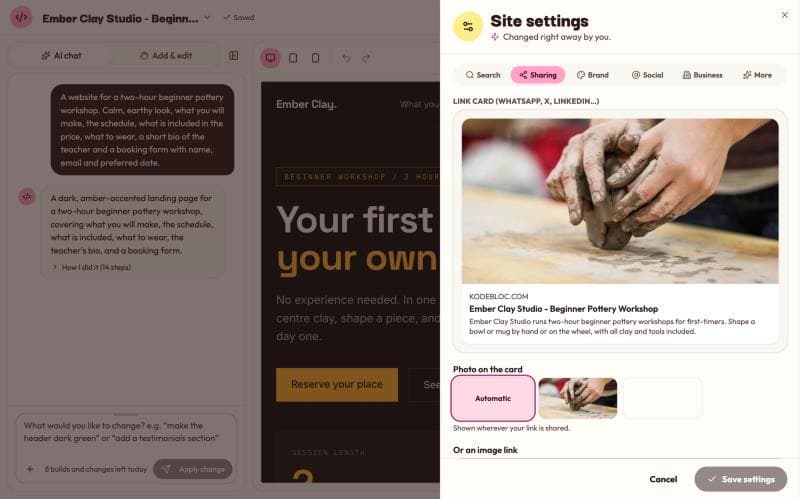
When you paste your website's link into WhatsApp, X, LinkedIn and many other apps, they show a small card with a picture, a title and a line of text. This tab shows a preview of that card.
- Photo on the card lets you pick one of the photos already on your website. Automatic lets Kodebloc choose one for you. If your website has no photos, the card shows a Kodebloc image.
- Or an image link takes the web address of any picture instead. A picture of 1200 by 630 pixels looks best.
The card's title is your website's name followed by "built with Kodebloc", and its line of text comes from your description. Apps often keep an old card for a while, so a change may not show up at once in a chat where you shared the link before. Read more in Share your website.
Brand: tab icon, color and logo
- Tab icon is the small picture in the browser tab and in bookmarks. Type one emoji or up to two letters, or click one of the suggested emoji.
- Or an image as the tab icon takes the link to a square image, like your logo. It is used instead of the emoji.
- Theme color is the color some phones use to tint the browser bar. Pick it with the color box, type a code like
#2563eb, or click a suggested color. - Logo takes the link to your logo image. Search engines can show it next to your business.
Social: your other accounts
Add links to the places people can also find you. Click Add a link, choose the platform, and type your handle or link. You can add up to 12.
The platforms include Instagram, Facebook, X (Twitter), LinkedIn, YouTube, TikTok, WhatsApp, Pinterest, Threads, GitHub, Telegram, Discord and Spotify, plus an email address, a phone number and "Other website". For most platforms you can type just your handle, like @yourname, and Kodebloc makes the full link. If something doesn't look right, the box turns red and shows an example.
Use the arrows to change the order, and the bin to remove one. Tick Show icons in the footer to put a row of icons at the bottom of every page, in your website's colors. If your website has no footer, the icons can't be shown, but search engines still get the links.
Business: details for Google
This tab helps Google show your details, like your phone number and address, next to your website in search. First choose what your website is for: Company or organization, Local business, Restaurant or café, Shop, Professional service, or Person (portfolio, personal site). Then fill in your name, email, phone and address.
Except for a Person, you can also tick Opening hours and set the times for each day. Untick a day to mark it closed. Copy Monday to all weekdays saves typing.
More: what's coming
The last tab lists settings we are still working on: uploading your own images, a custom domain (your own address, like www.yourbusiness.com) and a custom page for links that don't exist. They can't be used yet. Today every published website lives at its own kodebloc.app address, explained in Your website's address.
Common mistakes
- Forgetting to update the live website. Saved settings only reach visitors after you publish or update.
- Stuffing the title with keywords. "Cakes Cakes Best Cakes Leeds" reads badly and doesn't help. Use your real name and one clear phrase.
- Ticking Hide from search engines by accident. If your website never shows up on Google, check this box first.
- Pasting a page link instead of an image link. For the logo and icons, the address should open the picture itself, often ending in .png or .jpg.
Still stuck?
Send us a message on the contact page and we'll reply by email.