Guides / Builder features
Earlier versions and undo
Your changes are saved as versions. Go back to an earlier one, undo a change by hand, and know how many are kept.
Two ways to step back
Kodebloc gives you two safety nets. They work in different ways, so it helps to know which one to reach for.
- Earlier versions keeps the last 10 versions of each website in your account. Use it to go back after an AI change you don't like, or to find how your website looked yesterday.
- Undo and Redo step through the changes you make by hand, one at a time, while you work. Use them to take back a single move, delete or typing change.
What saves a version
You don't need to press anything. Kodebloc saves a new version each time the page itself changes:
- Every change the AI makes, from the first build onward.
- A new photo you pick with Change photo.
- Changes you make by hand in the Add & edit tab. Changes made close together are saved as one version once you pause, so a burst of small edits doesn't fill the list.
- Tidying your pages in the Pages list. All the renames, moves and deletes you make before you close the list count as one version.
- Going back to an earlier version. That is saved as a new version too.
Some things don't change the page, so they don't make a version. Renaming your website and publishing it are two examples.
Versions are saved to your account, not to your browser. You can sign in on another computer or phone and they are still there. Clearing your browser doesn't remove them.
How many versions are kept
Each website keeps its last 10 versions. When one more version is saved after that, the oldest one is replaced. So if you make 30 changes in one afternoon, only the latest 10 can be opened.
Each website has its own list. Making changes to one website never pushes out the versions of another.
Go back to an earlier version
- Open your website in the editor.
- Click the website's name at the top left, next to the Kodebloc logo. A menu opens.
- Choose Earlier versions. A panel lists your versions, newest first. Each one is named after what changed, like “Make the header blue”, with the date and time. The version you have now is marked Current.
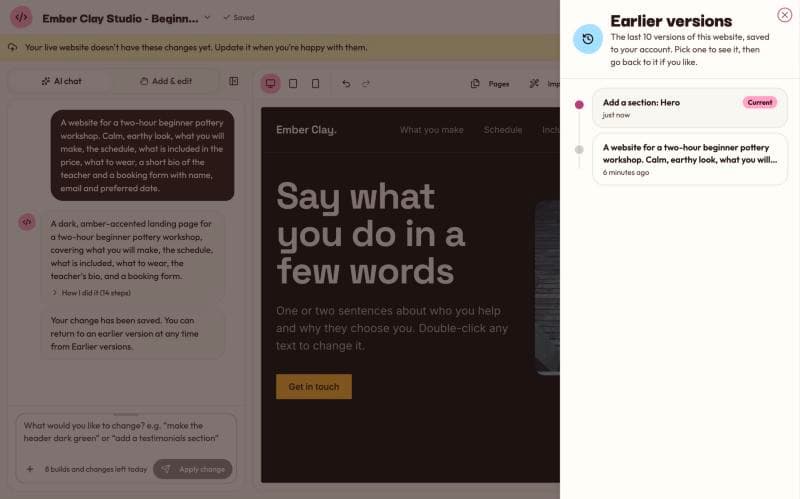
The Earlier versions panel. - Click a version to see it. The preview shows that version, and a bar above it says Earlier version and when it was made.
- Look around. You can switch pages if your website has more than one. To see the two side by side, click Compare with current in the bar.
- Click Go back to this version to use it. Or click Back to current to leave everything as it was.
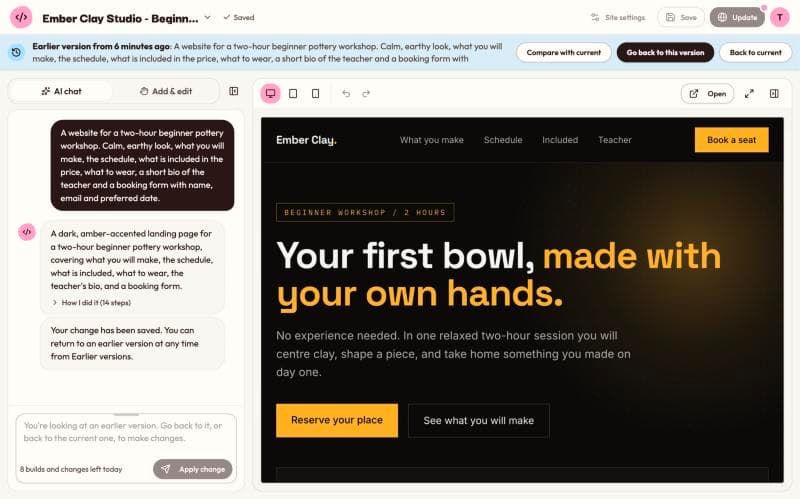
While you look at an earlier version, you can't change it. The chat and the hand tools wait until you either go back to it or return to the current one.
Going back doesn't delete anything
When you go back, the old version becomes your current page and is saved as a new version, named something like “Went back to Make the header blue”. Your newer versions stay in the list. If you change your mind, open Earlier versions again and pick the newer one.
One thing to watch: going back counts as a version, so it uses one of the 10 places, like any other change.
Deleted a page by mistake?
If you delete a page of a website with more than one page, the deleted page is still inside your earlier versions. Open Earlier versions and go back to the version from before the delete. Read more in Websites with more than one page.
Undo and Redo for changes by hand
When you edit by hand in the Add & edit tab, a toolbar sits above the preview. Its first two buttons are Undo and Redo.
- Undo takes back your last change by hand. Press it again to go back one more step. The keyboard shortcut is
Ctrl+Z(Cmd+Zon a Mac). - Redo puts back a change you just undid. The shortcut is
Ctrl+Shift+Z(Cmd+Shift+Zon a Mac).
Undo covers things like moving a part, deleting it, duplicating it, adding a section, typing new words and swapping a photo with Change photo. After some changes a small message pops up with its own Undo button, which does the same thing.
Undo remembers up to 50 steps. None of this uses your AI requests.
When Undo is grayed out
Undo only steps through changes made by hand. It stops working when:
- The AI changed the page after your hand edits. Undo can't reach past an AI change. Use Earlier versions instead.
- You went back to an earlier version.
- The AI is busy working on your page.
- You are looking at an earlier version.
- You started a new website. Each website starts with an empty Undo list.
Undo lives in the open editor, while you work. Earlier versions are the ones that stay in your account for later.
Your live website is separate
Going back to a version or pressing Undo changes your website in the editor only. If your website is published, people with the link still see the last version you put online. Kodebloc shows a notice when your live website is behind. To put the version you chose online, follow Update or take down a live website.
Common mistakes
- Pressing Undo after an AI change. Undo is for changes by hand. To take back an AI change, open Earlier versions.
- Waiting too long. Only the last 10 versions are kept. If you see a version you like, go back to it soon, before newer changes push it out.
- Forgetting to update the live website. After you go back, press Update live site if you want visitors to see it.
Still stuck?
Send us a message on the contact page and we'll reply by email.