Guides / Builder features
Edit your website by hand
Drag in sections, change any words, move parts and swap photos yourself, next to the AI.
Two ways to change your website
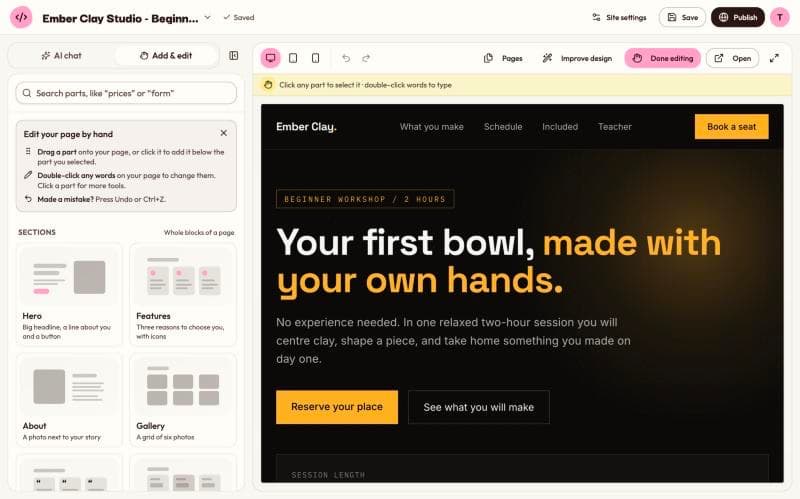
The left side of the builder has two tabs. AI chat is where you describe what you want and the AI makes it. Add & edit is where you make changes yourself: drag in new sections, type new words, move things around and swap photos.
You can switch between the two tabs at any time. A common way to work is to let the AI build a first version, then fix small things by hand. Fixing a typo yourself is faster than asking for it.
Editing by hand happens in your browser. It doesn't use any of your AI requests. Only the buttons with "AI" in their name, like Add with AI and Fit with AI, use a request. For a quick tour of what the editor can do, see the visual editor page.
Open the editor
There are two ways in:
- Click the Add & edit tab above the chat.
- Or open the Edit menu above the preview and choose Edit by hand. The bar then shows Done editing, which you click when you are finished.
No website yet?
If you open Add & edit before you have built anything, you get two choices. Start with a blank page gives you a simple page with no AI at all, and you build the rest by dragging in sections. Describe it to the AI takes you to the chat, where the AI builds a first version for you to change by hand afterwards.
Add sections and elements
The Add & edit tab shows two groups of parts:
- Sections are whole blocks of a page: Hero, Features, About, Gallery, Reviews, Prices, FAQ, Numbers, Team, Call to action, Contact form and Location.
- Elements go inside a section: Heading, Text, Button, Photo, Quote, List, Divider and Space.
Each new part takes the colors, fonts and button style your page already uses. Use the search box at the top to find a part, for example by typing "prices" or "form".
You can add a part in four ways:
- Drag it from the panel and drop it on the preview where you want it.
- Click it to add it just below the part you have selected on the page.
- Use Add section here. Hover over a section in the preview and an Add section here button appears on its lower edge. Press it, then pick a section from the panel.
- Use Choose where. Each card has a small crosshair button. Press it, then click or tap the spot on your page. This is the easiest way on a phone, where dragging is hard.
A new section arrives with sample words. To have the AI place a part and write its words for your business in one step, use the sparkle button on the card, Add with AI. That uses one AI request.
Change words
Double-click any words on your page, like a heading, a paragraph or a button, and type. On a phone, double-tap. Your fonts and colors stay the same. Press Enter or click somewhere else to keep the new words, or press Esc to cancel.
You can also click a part once to select it, then press Edit text in the toolbar that appears beside it.
The toolbar for a selected part
Click any part of the page to select it. A small toolbar floats next to it with its name and the tools that fit that part:
- Edit text changes the words.
- The link button changes where a link or button goes. Type a web address, a spot on your page like
#contact, an email address or a phone number, then click Save. - Photo opens a photo search so you can pick a new picture. See Photos in your website.
- Move up and Move down change its place.
- Duplicate makes a copy right below it.
- Delete removes it. The Delete key on your keyboard does the same.
- Fit with AI shows for whole sections. The AI makes the section match your site and writes its words for your business. It uses one AI request.
- For smaller parts, the speech bubble button lets you ask the AI to change it in the chat instead.
Press Esc to let go of the selection.
Reorder whole sections
Below the parts, the panel has a list called On this page. It shows the sections of the page on screen, from top to bottom. Click a name to select that section in the preview, or use its arrows to move it up or down. This is handy on long pages where dragging would mean a lot of scrolling.
If your website has more than one page, the list shows the page on screen. Switch pages with the Page menu above the preview. See Websites with more than one page.
Undo and redo
Made a mistake? Press Undo in the editing bar at the top of the preview, or Ctrl+Z on your keyboard. Redo (Ctrl+Shift+Z) brings the change back.
Your hand edits are saved for you. Changes you make close together are kept as one step in Earlier versions, so the list doesn't fill up with every tiny edit. To go back further than Undo allows, open Earlier versions.
Hand or chat: which to use?
- Use your hands for small, exact jobs: fixing a word, changing a price, swapping a photo, moving a section, deleting something you don't want.
- Use the chat for bigger ideas: a new color scheme, a different mood, rewriting all the text, or something none of the ready-made parts does. See Change your website by chat.
Common mistakes
- Leaving sample words in. New sections come with placeholder text. Read every new section and replace the words, or use Fit with AI.
- Forgetting to publish. Hand edits change your saved project, not your live website. Use Update to put them online. See Update or take down a live website.
- Dropping a section in the wrong spot. Watch for the line that shows where it will land before you let go. If it lands wrong, use Move up or Move down, or Undo.
Still stuck?
Send us a message on the contact page and we'll reply by email.