Guides / Build a website
Change your website by chat
Change colors, words, photos and sections by asking in plain language, and point at the exact part to change.
How changing by chat works
Once your first version is built, the message box in the AI chat tab is for changes. Type what you want to change in plain words and press Apply change (or Enter). The AI changes only what you asked for and keeps the rest of the page as it was. Most changes take a few seconds. Bigger ones can take longer.
Each change saves a new version, so you can always go back. Open the menu with your website's name and choose Earlier versions. See earlier versions and undo.
Change colors
Name the part and the color. Plain color names work, and so do color codes like #E85D75.
“Make the top bar dark green and the buttons gold”
“Use a soft cream background for the whole page instead of white”
Change words
Tell the AI exactly what the new words are, or ask it to write them for you.
“Change the main headline to Fresh bread every morning, baked in Pune”
“Rewrite the about section so it sounds friendlier and mentions we are a family business since 1998”
For small fixes, like a typo or a phone number, editing by hand is often quicker and uses no AI request. See edit your website by hand.
Change photos
You can ask for different photos by chat, like “show a photo of croissants in the top section”. To choose a photo yourself, pick it on the page (see the next section). When your pick is a photo, a Change photo button appears next to it in the chat. It opens a photo search where you choose the one you want. Read more in photos in your website.
Add, move or remove sections
“Add a reviews section after the menu with three short customer quotes”
“Move the contact form above the map”
“Remove the team section”
Pick the exact part to change
Sometimes you only want to change one thing, and “the button” could mean any of five buttons. Picking it on the page tells the AI exactly which one you mean.
- Click + next to the message box and choose Pick a part of your page. Or open the Edit menu above the preview and choose Pick a part. The chat says “Now click the part of your page you want to change. Press Esc to stop.”
- Click the part on your page. You can pick a whole section, or one thing inside it, like a heading, a card, a picture, a link or a button.
- Above the message box you now see Changing and the name of what you picked, for example: the button “Visit us” in the “Hours” section.
- Type what should change, like “make it bigger” or “use a darker color”, and press Apply change.
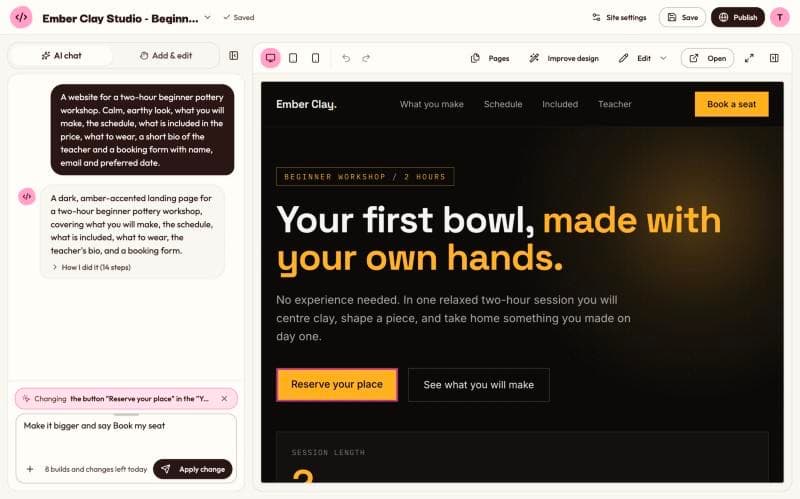
To stop picking, press Esc or click Stop picking. To go back to changing the whole page, click the small X next to your pick (“Change the whole page instead”).
Use a picture for a change
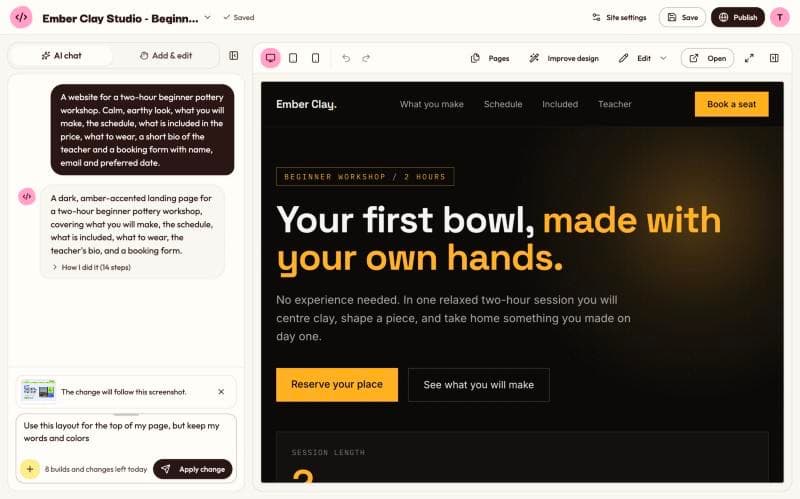
You can add a screenshot to a change, too. Click + next to the message box, choose Add a screenshot and pick a PNG, JPEG or WebP file. The chat says “The change will follow this screenshot.” The AI uses it as a guide for how the change should look, and keeps your own words unless you ask for new ones. See turn a screenshot into a website.
Common requests that work well
- “Make the headline bigger and bolder”
- “Round the corners of the cards”
- “Add our Instagram link to the footer”
- “Add a frequently asked questions section with five questions”
- “Put the prices in a table”
- “Make the page feel calmer, with more space between sections”
- “Use a different font for the headings, something more elegant”
- “Add a button at the top that scrolls to the contact form”
To tidy up spacing, fonts, colors and wording all at once, click Improve design in the top bar. It keeps your content the same. On a phone you find it in the menu with your website's name.
On a website with several pages, the AI knows which page you are looking at, so you can say “on this page”. To add a new page, use the Pages button above the preview. See websites with more than one page.
Tips for better changes
- One or two changes at a time. Short requests are easier to get right, and easier to undo if you don't like the result.
- Say where. “The button in the hours section” is clearer than “the button”. Picking it is clearer still.
- Say what you want, not only what is wrong. “Make it look better” leaves the AI guessing. “Use bigger photos and less text” does not.
- Check the result on a phone. Use the Mobile view button above the preview after bigger changes.
Common mistakes
- Starting a new website to fix one thing. A change is faster and keeps everything you like.
- Typing while the AI is working. The message box is locked until the current change is done.
- Forgetting the limit. On the Free plan, each change you send in the chat counts toward your 10 builds and changes a day. The count is shown under the message box. Picking a part doesn't count, and neither do changes made by hand.
- Expecting the live website to change by itself. If your website is already published, your changes go online only when you update it. See update or take down a live website.
Still stuck?
Send us a message on the contact page and we'll reply by email.