Guides / Build a website
Publish your website
Put your website online with its own address, find it again in My projects, and take it down when you want.
What publishing means
While you build, your website lives only in your Kodebloc account. Only you can see it. Publishing puts it online with its own address, so anyone with the link can open it on a phone or computer. Publishing is free while Kodebloc is in beta.
Before you publish: a quick check
- Real details. The AI makes up phone numbers, addresses, prices and names when you don't give them. Check every one.
- Phone screens. Click Mobile view above the preview and scroll through the whole page.
- Spelling. Read the headings and buttons once more.
- Search and link previews. You can set how your website shows up on Google and in shared links in Site settings. See site settings.
How to publish
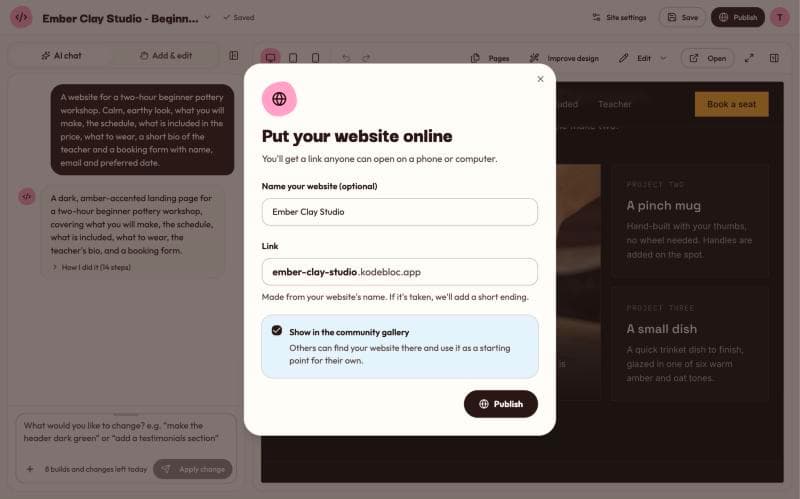
- Click Publish in the top bar of the editor. A box opens called “Put your website online”.
- Under Name your website (optional), type its name, for example “Rosa's Bakery”.
- Check the Link. Kodebloc makes it from your website's name, so Rosa's Bakery becomes
rosas-bakery. You can type a different one. Links use letters, numbers and dashes, and need at least 3 of them. - Decide on Show in the community gallery. It is on unless you turn it off. When it is on, others can find your website in the gallery and use it as a starting point for their own.
- Click Publish.
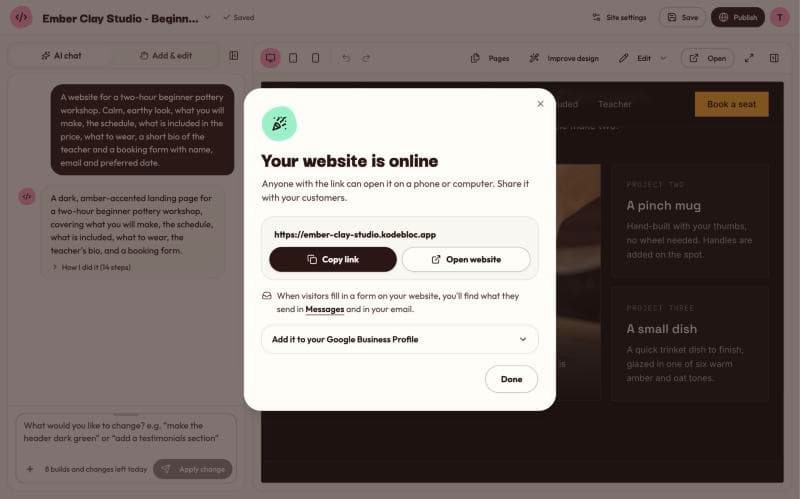
When it is done, you see “Your website is live! Copy the link to share it.” The box changes to Your website is online. It shows your website's link with a Copy link button and an Open website button.
Your website's address
Published websites get an address like rosas-bakery.kodebloc.app. A website with several pages gets a link for each page as well. All the details, including how links for older websites look, are in your website's address.
Safety check
Every time you publish, Kodebloc checks the page first. It looks for things that could trick visitors, like password or card number fields. If something is found, the page is not published, and the message tells you what to change. If you think the check got it wrong, write to us on the contact page. Learn more in safety on Kodebloc.
Forms and Google
If your website has a form, what visitors send arrives in Messages and in your email. After publishing, the box also explains how to add your link to your Google Business Profile, so people who find you on Google Maps see a Website button.
Share your link
Copy the link and paste it anywhere: a text message, an email, a social media post or a printed poster. Published websites also have a Share button for visitors. Read share your website for the Share button and how link previews look.
Find your websites in My projects
Open My projects from the menu with your website's name in the editor, or from your account menu. It shows every website you have built. Kodebloc saves your work there automatically as you build.
Each website has a card with:
- A small picture of the website, its name and when you last changed it.
- A Draft label if it was saved automatically while you worked, or Update pending if the live website is missing your latest changes.
- Open, to keep working on it in the editor.
- Publish, to put it online right from My projects, or View live if it is already online.
- A bin button to delete it.
Below the cards, Live websites lists everything you have online now, with its address, whether it is in the community gallery or “Only people with the link”, how many views and shares it has, and when it was published. View counts can take a few minutes to update.
On the Free plan you can keep 30 websites in My projects and have 5 online at a time. If you reach the limit for websites online, take one offline before you publish a new one. Updating a website that is already online always works.
Changing a website after you publish
Changes you make in the editor don't go online by themselves. When your live website is behind, the Publish button turns into Update with a small dot, and a bar above the editor says “Your live website doesn't have these changes yet.” Click Update live site to put your changes online at the same address. The full guide is update or take down a live website.
Taking a website down
You can take a website offline in three ways:
- From the editor. Open the website, click Publish (or Update), and next to “Live at” click Take offline.
- From My projects. Under Live websites, click Take offline next to the website.
- By deleting the project. When you delete a website that is online, tick Also take its website offline to take it down too. If you leave it unticked, the website stays online.
Kodebloc asks you to confirm first. After that, the link stops working for everyone. If the website was in the community gallery, it usually leaves the gallery within about 10 minutes.
Taking a website offline does not delete your project. It stays in My projects, and you can publish it again any time. Deleting a project is different: it is removed for good, and you can't undo it.
Build a website to publishStill stuck?
Send us a message on the contact page and we'll reply by email.